
Edit Summary
Include comments when editing pages to record extra details about changes.
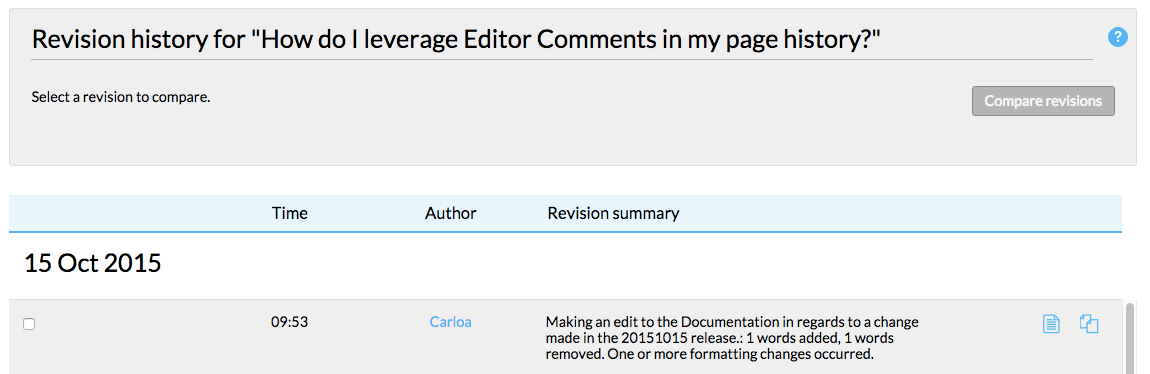
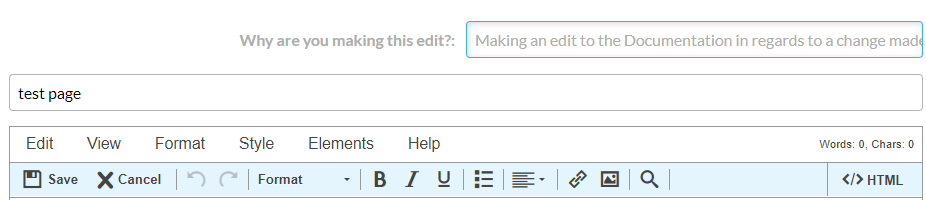
Comments saved in the Why are you making this edit? field display within Revision History of a page and in Subscription Notification emails.
Add revision comments
- Open the page to be edited in Edit mode.
- Edit the page as necessary.
- At the top of the page, in the Why are you making this edit? text field, enter comments about your changes and then click Save.
Comments are only stored if an edit event occurs. If you want to leave a comment without editing the page (for example, to approve a page for publishing), consider using Review Manager.
View revision comments
- On any page, navigate to Options > Revision history.
- Locate comments under the Revision summary column.