Site Contributions Report
The Site Contributions report provides an overview of all contributions that occurred across your site, namely, how many times users created, edited, moved, copied or deleted content.
Access the report
Navigate to Site tools > Dashboard > Contribution Reports > Site Contributions.
- The Site Contribution report can be accessed by Admins
- The report includes export options to download or email the data.
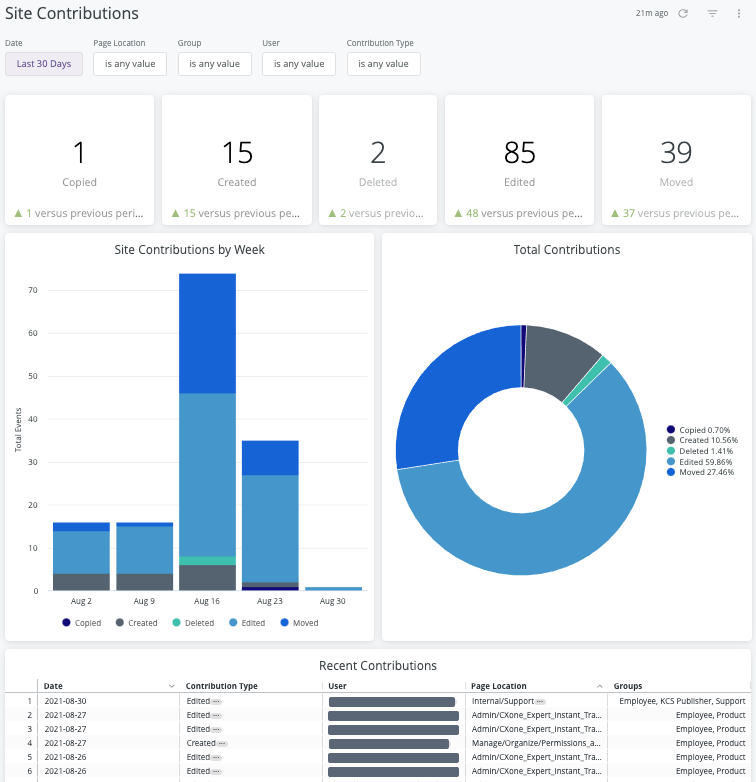
Report components
Export options
All of the export options can be found in the Dashboard Actions menu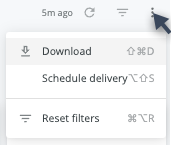
- Download as:
- CSV
- Schedule Delivery (email reports right away or on a schedule)
Filters and Reload
- Date
- Page Location
- Group
- User
- Contribution Type
- Reload

- Show/hide filters

- Reset filters option (located in the Dashboard Actions menu)
Data
Site Contributions Overview
Format: Tiles of Copied, Created, Deleted, Edited, and Moved (totals with comparisons to previous period)
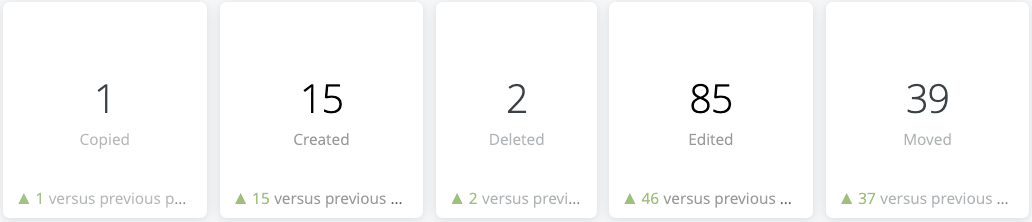
Interaction options:
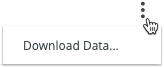
- Hover over a tile to show and click the 3 dots menu for Download Data options
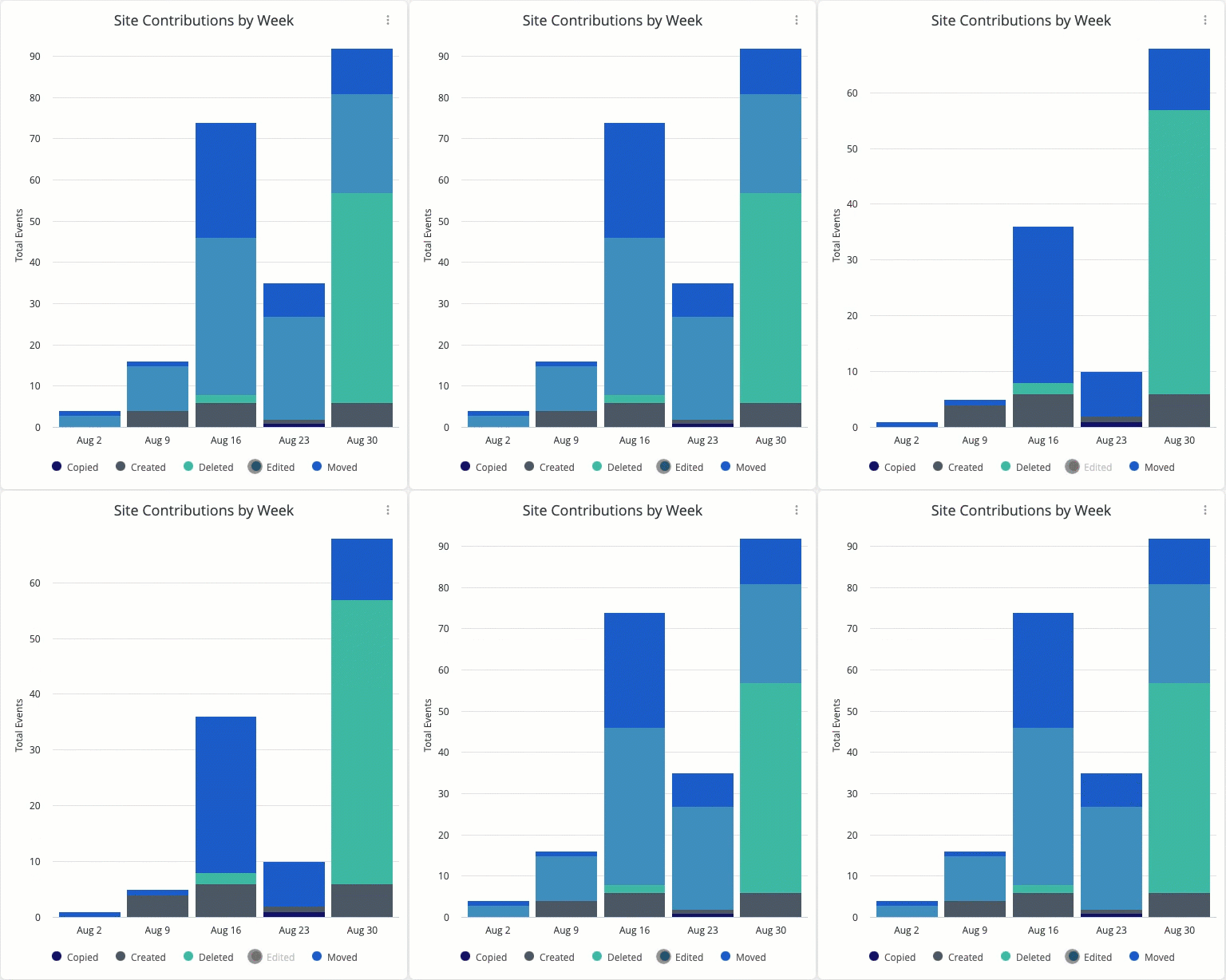
Site Contributions by Week
Format: Stacked bar chart of Copied, Created, Deleted, Edited, Moved
Interaction options:
- Hover over chart to show and click 3 dots menu for Dashboard actions options
- Click the chart labels (Copied, Created, Deleted, Edited, Moved) to toggle each contribution type off or back on in the stacked bar chart
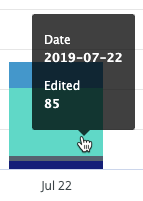
- Hover over any part of the stacked bar chart to see a details popup of date and specific value
- Click any part of the stacked bar chart to see drill options
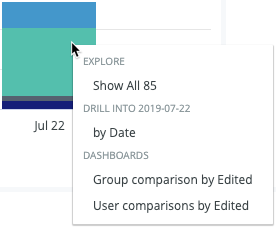
- Explore (popup data table with download option)
- Drill into Date (popup data table with download option)
- Dashboards (refreshes page to Group Comparison Report or User Comparison Report with relevant filters applied)
Total Contributions
Format: Doughnut chart of Copied, Created, Deleted, Edited, Moved
Interaction options:
- Hover over chart to show and click 3 dots menu for Download Data options
- Click the chart labels (Copied, Created, Deleted, Edited, Moved) to toggle each contribution type off or back on in the doughnut chart
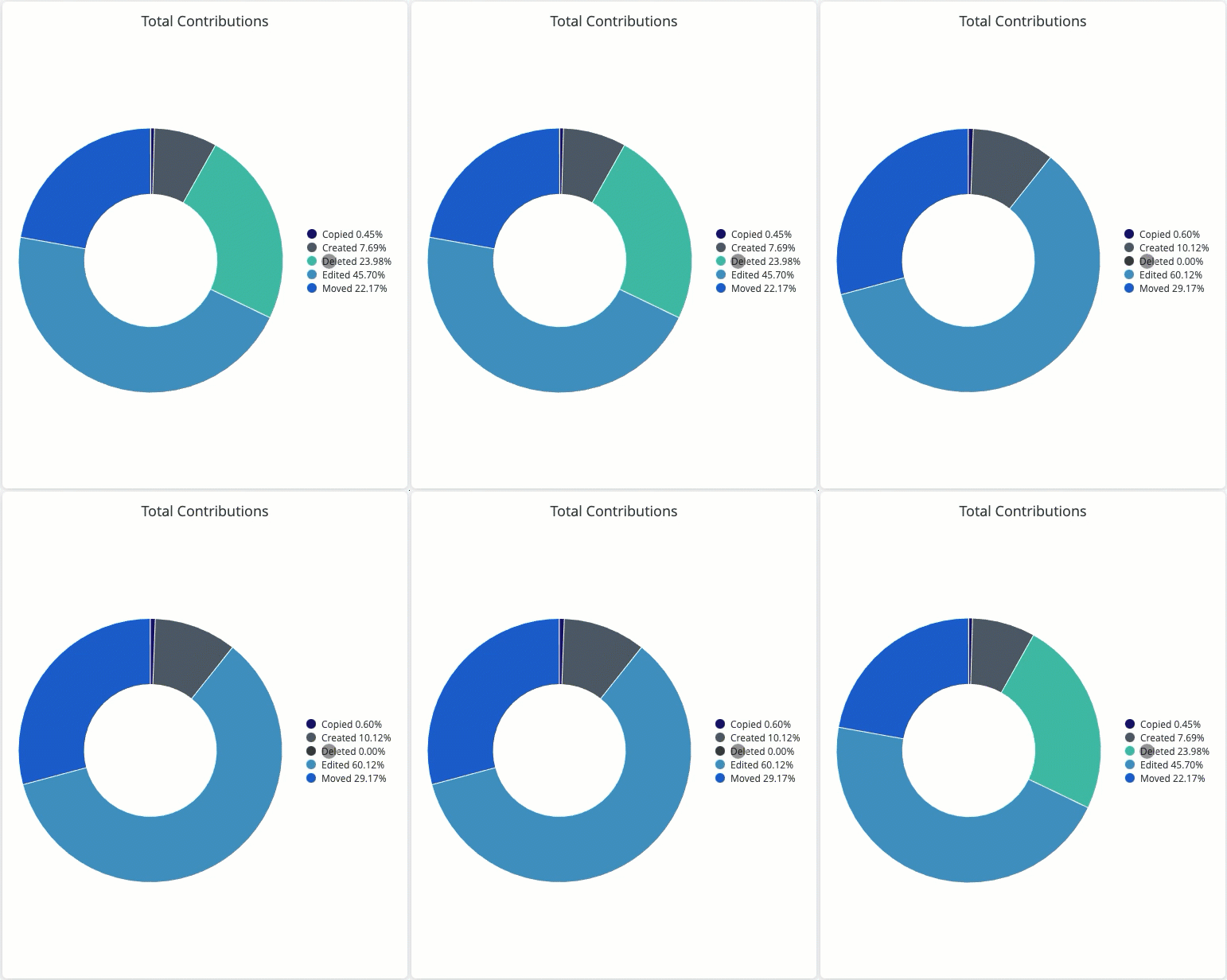
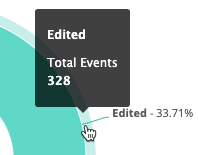
- Hover over any part of the doughnut chart to see a detailed popup of the contribution type and total number of events
- Click any part of the doughnut chart to see drill options
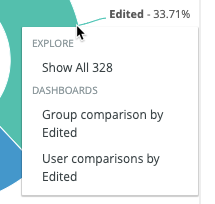
- Explore (popup data table with download option)
- Dashboards (refreshes page to Group Comparison Report or User Comparison Report with relevant filters applied).
Recent Contributions
Format: Data table with the following columns:
- Date
- Contribution Type
- Preferred Username
- User Email
- Page Location
- Page Number
- Groups
Interaction options:
- Click the tiles 3 dots menu for Download Data options.
- Click a column label to select it as sort value
- Click the selected label to reverse the sort order
- Click the three dot menu next to the column label to open the Column Options menu
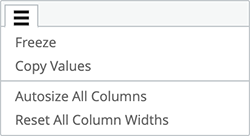
- Freeze: freezes one or more columns to the left side of the table
- Copy Values: copies the column header and all the values in the selected column
- Autosize All Columns: resizes the column widths to fit the column heading name or its longest data value
- Reset All Column Widths: resizes the columns back to their default widths
- Click the date to see a drill down option by event
- Click the text of any Contribution Type item to see Dashboards (refreshes page to Group Comparison Report or User Comparison Report with relevant filters applied).
- Click the text or 3 dots menu of any Page Location item to see the Go To link that opens that page in a new window.
Filter tips
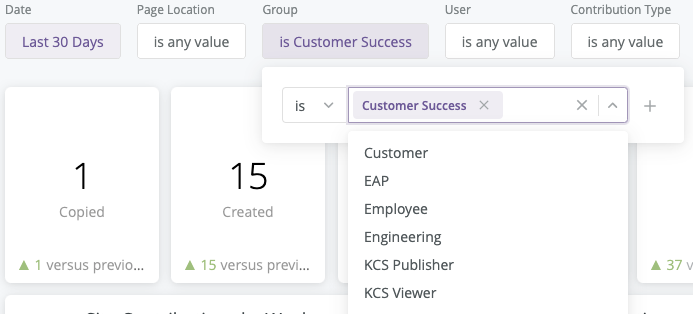
- Auto-suggest: For Page Location, Group, User, and Contribution Type filters, click into each filter field with is (default) filter type selected to trigger the auto-suggest options before using other filter types.
- A drop-down arrow will appear when auto-suggest options are available.

- Filter field entries: Ensure selected filter field entries are accepted with grey background before clicking the reload button .
- Filter field entries are case sensitive.
Considerations
- Depending on query size, data may take up to a minute to load. A spinning wheel indicator will appear until each data component loads, and the cancel reload button will change to the reload button when all components complete loading.
- Data settling period: The data for the previous day should be considered incomplete and will likely increase (usually by less than 1%) the following day.
- The report times out after 1 hour of inactivity. Refresh your browser to reconnect or see 401 error troubleshooting.
- Report labels are not localized on non-English NiCE KM sites.
- The report service, powered by Looker, has weekly maintenance hours when reports may be unavailable.
- Sunday and Wednesday: 4 AM - 6 AM UTC (9 PM - 11 PM PST)
The data for this report has been collected since January 1, 2018 and is current through each previous day due to nightly data processing.